


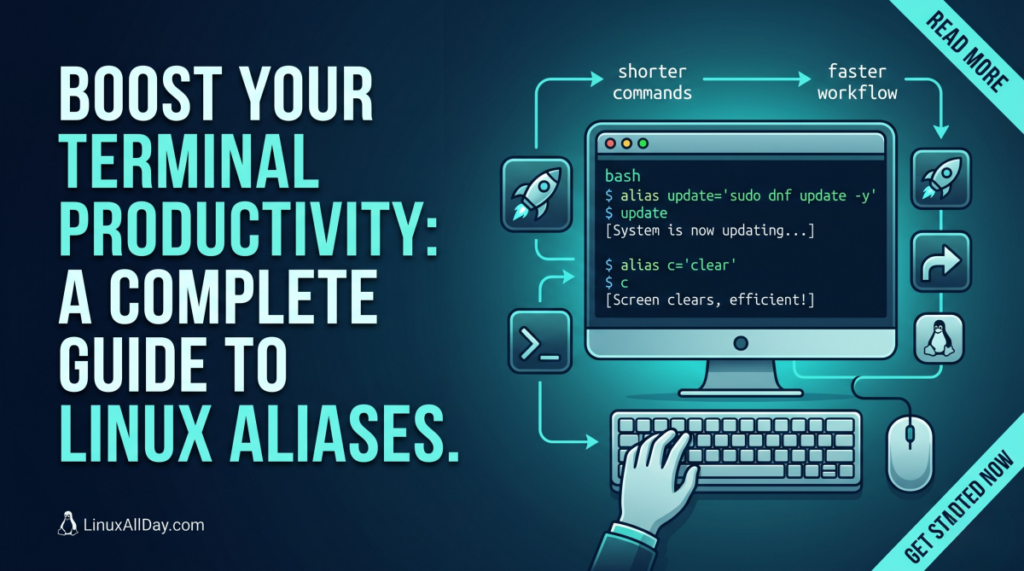
If you spend a lot of time in the Linux terminal every day, you certainly encounter repetitive and lengthy commands. Why type complex syntax over and over again when you can make your life easier? This is where Linux aliases come into play.
What is a Linux Alias?
An alias is a user-defined shortcut for an existing shell command. It acts as a pseudonym: when you type a short word or letter into the terminal, the shell replaces it with a predefined full command or a sequence of commands.
With aliases, you can:
Shorten long and complex commands.
Add default flags (arguments) to standard commands.
Prevent typos during complex operations.
How to Create a Temporary Alias
A temporary alias is only valid for your current terminal session. Once you close the terminal or disconnect your SSH session, the alias is deleted. This is ideal for quick testing.
The syntax is straightforward:
Bash
alias shortcut_name='full_command'
Important: There must be no spaces around the equals (
=) sign. Using single quotes (') is best practice to prevent the shell from expanding variables prematurely.
Example:
If you want the command c to clear the screen instead of typing clear:
Bash
alias c='clear'
How to Create a Permanent Alias (Step-by-Step Guide)
If you want your aliases to persist after a system reboot, you must save them in your shell’s configuration file.
Step 1: Find Out Which Shell You Are Using
Most commonly, this is either bash or zsh. You can check it with the following command:
Bash
echo $SHELL
Step 2: Open the Configuration File
Depending on your shell output, open the corresponding file in your home directory (~) using your preferred text editor:
For Bash:
nano ~/.bashrcFor Zsh:
nano ~/.zshrc
Step 3: Add Your Aliases
Scroll to the bottom of the file and add your custom shortcuts. Example configuration:
Bash
# My custom aliases for productivity
alias ll='ls -la --color=auto'
alias update='sudo dnf update -y'  # Change to apt or pacman based on your distro
alias ports='sudo netstat -tulanp'
Step 4: Save and Refresh the Settings
Save the file (Ctrl+O then Ctrl+X in nano). To apply the changes immediately without restarting your terminal, refresh the session using the source command:
Bash
source ~/.bashrc
# or source ~/.zshrc if you use zsh
Practical Examples for Better Productivity
Here are some battle-tested aliases that will save you time in both daily tasks and production environments:
| Alias | Actual Command | Description |
alias ..='cd ..' | cd .. | Move back one directory level |
alias ...='cd ../..' | cd ../.. | Move back two directory levels |
alias dps="docker ps --format 'table {{.Names}}\t{{.Status}}\t{{.Ports}}'" | Docker Output | Clean and readable layout of running containers |
alias myip='curl ifconfig.me' | curl ifconfig.me | Quickly check your public IP address |
alias path='echo -e ${PATH//:/\\n}' | Print PATH | Displays system paths line-by-line for readability |
How to Remove an Alias
To temporarily disable an alias in your current session, use the unalias command:
Bash
unalias shortcut_name
To permanently remove an alias, simply open your configuration file (.bashrc or .zshrc), delete the line containing the alias, save the file, and run the source command again.
Conclusion
Aliases are a simple yet incredibly powerful tool to customize your workflow. By optimizing the commands you use most frequently, your time in the Linux terminal will become faster, more efficient, and less prone to typing mistakes.